Best Computer Monitors with Built-In Cameras for Seamless Video Calls
You get sharp 1080p to 5MP video, noise-canceling mics, and wide 178° IPS or VA panels that stay color-accurate off-axis, ideal for podcasting or remote sessions. Monitors like the ASUS BE24EQK and Philips 34E1C5600HE offer flicker-free 100Hz displays, USB-C docking, and Windows Hello login, reducing clutter while boosting reliability. TÜV-certified eye care and built-in KVM switches help maintain focus during long recordings. For hybrid workflows, these all-in-one displays streamline your studio setup without sacrificing performance or connection quality-there’s more to match your specific needs.
We are supported by our audience. When you purchase through links on our site, we may earn an affiliate commission, at no extra cost for you. Learn more. Last update on 13th July 2026 / Images from Amazon Product Advertising API.
Notable Insights
- Choose monitors with 1080p or higher built-in webcams for sharp video call quality.
- Look for models with noise-canceling mics and echo cancellation for clear audio during calls.
- Opt for monitors with privacy shutters or retractable cameras to secure your privacy.
- Select UltraWide or QHD/4K displays for larger screens that enhance multitasking and video conferencing.
- Prioritize USB-C connectivity with power delivery for streamlined setup and docking capabilities.
ASUS BE24EQK 24″ Business Monitor with Webcam
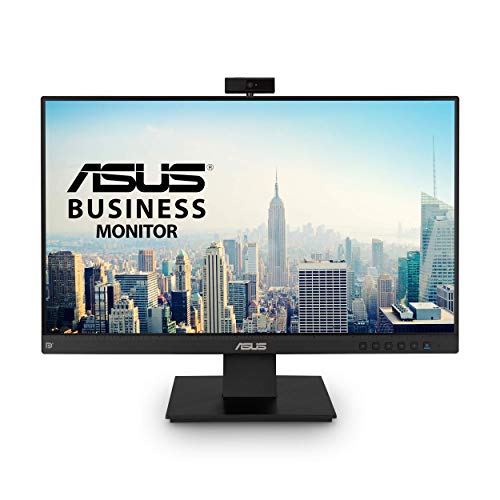
If you’re working long hours in video-heavy meetings or teaching online and don’t want clutter on your desk, the ASUS BE24EQK 24″ Business Monitor with Webcam is a smart pick, thanks to its built-in 2MP Full HD adjustable webcam that delivers sharp video quality with reliable beamforming and echo cancellation. I use it daily for Zoom calls and online lessons, and the 23.8-inch IPS panel gives me wide 178° viewing angles, accurate colors at 72% NTSC, and minimal glare with its matte finish. The 1 ms response time and 60 Hz refresh keep motion smooth, while flicker-free backlighting and low blue light reduce eye strain during long sessions. Its integrated mic array cancels keyboard noise, and the speakers are clear for quick audio checks-no extra gear needed. I love how the frameless design fits my dual-monitor setup, and the DisplayPort, HDMI, and USB inputs make connections simple. TÜV-certified eye care, solid 300 cd/m² brightness, and a 3-year warranty with ARR support make it a reliable long-term workhorse. It even includes a 1-month Adobe Creative Cloud trial-handy for quick editing. For video calls, teaching, or remote collaboration, this monitor keeps me efficient, comfortable, and camera-ready.
Best For: Professionals and educators who need a clutter-free, camera-ready monitor for long hours of video conferencing, online teaching, and remote work with reliable built-in audio and video.
Pros:
- Integrated 2MP Full HD adjustable webcam with beamforming and echo cancellation for high-quality video calls
- Flicker-free display with low blue light and TÜV Rheinland certification for reduced eye strain during extended use
- Frameless design and multiple connectivity options (DisplayPort, HDMI, USB) ideal for multi-monitor setups and seamless integration
Cons:
- 60 Hz refresh rate and 1 ms response time may not satisfy users needing high-performance display for fast-paced content
- Built-in speakers and mic, while functional, may lack the clarity of dedicated external peripherals
- Matte finish reduces glare but may result in slightly less vibrant visuals compared to glossy screens
Philips 34″ UltraWide QHD Monitor (34E1C5600HE)
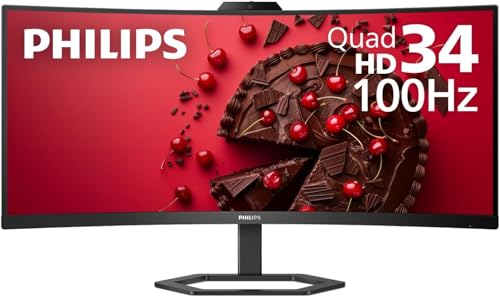
I rely on monitors that streamline my workflow without sacrificing performance, and the Philips 34″ UltraWide QHD Monitor (34E1C5600HE) stands out when you need an all-in-one solution for podcasting, remote recording sessions, or video conferencing-especially if you’re tired of juggling external webcams, mics, and docks. Its 3440 x 1440 VA panel delivers deep 3000:1 contrast and 99.25% NTSC color accuracy, ideal for color-critical audio editing. The 5MP camera supports Windows Hello login in under 2 seconds, while noise-canceling mic and 5-watt speakers guarantee clear vocal capture. A single USB-C cable handles 65W power delivery, data, and video, simplifying setups. With 100 Hz refresh, Adaptive Sync, and flicker-free viewing, it keeps me productive and comfortable during long sessions.
Best For: Content creators and remote professionals seeking an all-in-one monitor with integrated webcam, audio, and seamless USB-C connectivity for productivity and multimedia workflows.
Pros:
- Integrated 5MP webcam with Windows Hello, noise-canceling microphone, and 5-watt speakers enable hassle-free video conferencing
- Single USB-C cable delivers 65W power, video, and data, simplifying desktop setup and device compatibility
- High 3000:1 contrast ratio, 99.25% NTSC color gamut, and QHD resolution ensure accurate color reproduction for creative work
Cons:
- 100 Hz refresh rate falls short for high-end gaming compared to 144Hz or higher monitors
- Glossy screen finish may increase glare in brightly lit environments
- USB-C port supports up to 65W power delivery via single cable, despite docking capability of up to 90W
27″ Business Webcam Monitor 1080P 120Hz

This 27-inch Business Webcam Monitor with 1080P resolution and a 120Hz refresh rate is ideal for professionals who need seamless video conferencing and responsive on-screen performance without cluttered desk setups. I use it daily for podcast editing and client calls, and the built-in 3MP webcam delivers sharp video, while the mic array cancels background noise effectively. The IPS panel offers accurate colors and wide viewing angles, perfect for reviewing audio waveforms or video timelines. With HDMI, DisplayPort, VGA, and USB 2.0, I connect my audio interface, laptop, and MIDI controller without issue. The frameless design saves space, and eye care mode reduces fatigue during long sessions. Integrated speakers are clear enough for dialogue monitoring, eliminating the need for external audio gear in small setups.
Best For: Professionals who need an all-in-one monitor with integrated webcam and audio for efficient video conferencing and productivity in compact workspaces.
Pros:
- Built-in 3MP webcam and noise-canceling mic array streamline video calls without extra peripherals
- 120Hz refresh rate and IPS panel deliver smooth, color-accurate visuals ideal for creative workflows
- Multiple connectivity options (HDMI, DisplayPort, VGA, USB 2.0) support versatile device integration
Cons:
- USB 2.0 ports may limit data transfer speeds for modern high-bandwidth devices
- Integrated speakers lack depth and volume for critical audio monitoring
- 1080P resolution on a 27-inch screen results in lower pixel density compared to higher-resolution displays
Samsung 34-Inch ViewFinity S65VC Monitor

The Samsung 34-Inch ViewFinity S65VC Monitor stands out for creators and remote workers who need a single display that handles video calls, content creation, and multitasking without switching screens. I use its 3440 x 1440 VA panel for color-accurate audio editing and podcast recording, thanks to HDR10, 3000:1 contrast, and 72% color gamut. The 1000R curved screen reduces eye strain during long sessions, while the sliding 1080p camera delivers sharp video calls with Windows Hello login. I control my desktop and laptop seamlessly using the KVM switch, USB-C power delivery, and Picture-by-Picture mode. TÜV-certified flicker-free tech and blue light reduction keep me comfortable, and I appreciate the eco-conscious 5% ocean-bound plastic build and recyclable packaging.
Best For: Content creators, remote professionals, and multitaskers seeking a high-performance, eco-conscious curved monitor with built-in video conferencing and cross-device integration.
Pros:
- High-resolution 34-inch Ultra-WQHD curved VA display with HDR10, 3000:1 contrast, and 72% color gamut for accurate color reproduction and immersive visuals
- Integrated Full HD sliding camera with Windows Hello, KVM switch, USB-C power delivery, and PBP/PIP support for seamless productivity and hybrid work
- TÜV-certified eye comfort features, ergonomic adjustability, and sustainable design with ocean-bound plastic and recyclable packaging
Cons:
- 5ms response time and 100Hz refresh rate may fall short for competitive gaming compared to higher-refresh-rate monitors
- Limited connectivity with only one HDMI and one DisplayPort, which could restrict multi-device setups
- 72% color gamut is adequate but not ideal for professional graphic design or wide-color workflows
22″ Touch Screen Monitor FHD 1080P
A 21.5-inch Full HD touchscreen with built-in HD webcam and speakers makes the Pisichen 22CMR-HD a smart pick for podcasters, remote learners, and content creators who want a clutter-free workspace without sacrificing video call quality or visual clarity, and I’ve found it especially useful when recording voiceovers or hosting live streams where responsiveness and clear audio-video sync matter. Its 10-point touch, 100Hz refresh rate, and 3ms response keep gestures and playback smooth, while the 99% color gamut, HDR, and 400 cd/m² brightness deliver crisp, vibrant visuals. I connect my audio interface via USB-C, which powers the display and transmits audio-video in one cable. The built-in mic and speakers handle calls clearly, though I use headphones for critical listening. VESA mounting keeps my setup clean, and the slim, white design fits my modern desk perfectly.
Best For: Podcasters, remote learners, and content creators seeking a streamlined, high-quality touchscreen display with built-in audio-visual tools for efficient and professional multimedia production.
Pros:
- Integrated 10-point touch, HD webcam, and speakers enable a clutter-free, all-in-one setup ideal for live streaming and video conferencing
- USB-C with power delivery and AV transmission simplifies connectivity and reduces cable clutter
- High 100Hz refresh rate, 3ms response time, and 99% color gamut ensure smooth, vibrant visuals suitable for dynamic content
Cons:
- Built-in speakers and microphone, while functional, lack the fidelity required for professional audio production
- Glossy screen may produce glare in brightly lit environments, affecting visibility
- Limited to 1-year warranty with no mention of advanced replacement or support options
Dell P2418HZm 24″ Monitor for Video Conferencing – P Series (Renewed)

Dell built the P2418HZm 24″ monitor with video conferencing in mind, so if you’re working from home, hosting remote meetings, or streaming content regularly, this renewed P Series display delivers sharp FHD 1080p video, a built-in HD camera, and reliable USB 2.0 connectivity that keeps your setup simple and professional. I use it daily for podcast checks and client calls, and the anti-glare screen cuts reflections under overhead lights. The 178-degree viewing angle lets me shift positions without losing clarity, and the built-in camera delivers crisp, natural-looking video. Though it lacks VESA mounting and uses only USB 2.0, the 90-day warranty offers peace of mind for a renewed unit priced right for home offices.
Best For: Home office professionals and remote workers who need a reliable, camera-equipped monitor for daily video conferencing and virtual collaboration.
Pros:
- Built-in HD camera and anti-glare screen enhance video call quality and reduce reflections
- Sharp FHD 1080p resolution with wide 178-degree viewing angles for consistent image quality
- Simple connectivity with HDMI and USB 2.0 ports for easy setup with laptops and desktops
Cons:
- Lacks VESA mount compatibility, limiting flexible mounting options
- Equipped only with USB 2.0 ports, which offer slower data transfer speeds
- Renewed units come with only a 90-day limited warranty
24″ Touchscreen Monitor 100Hz Full HD

You’ll want this 24-inch touchscreen monitor if you’re slicing through dense audio timelines in your DAW, need real-time waveform edits with pixel accuracy, and demand seamless face-to-face collaboration over video calls-no extra gear required. I use it daily for podcasting and tracking bass, and the 23.8-inch 2560×1440 panel delivers crisp detail, 400 nits of brightness, and a 3000:1 contrast ratio that makes plugins pop. The 100Hz refresh rate keeps scrolling smooth, while 10-point touch lets me tweak EQ curves naturally. My built-in pop-up cam handles client calls securely, and the Type-C, HDMI, and DisplayPort inputs connect my interface, laptop, and MIDI controllers without clutter. I tilt and raise it effortlessly-the ergonomic stand cuts fatigue during long sessions, and testers agree: it’s a game-changer for creative workflows.
Best For: Audio producers, podcasters, and creative professionals who need a high-resolution, touch-enabled display with integrated privacy-focused video calling and seamless multi-device connectivity for efficient, collaborative workflows.
Pros:
- Crisp 2560×1440 resolution with 100Hz refresh rate ensures smooth, detailed visuals ideal for precise audio editing and creative tasks
- 10-point multi-touch screen and ergonomic, fully adjustable stand enhance interactivity and comfort during extended use
- Built-in pop-up webcam and diverse connectivity options (Type-C, HDMI, DisplayPort, USB, VGA) reduce clutter and eliminate the need for external accessories
Cons:
- 23.8-inch screen may feel small for users preferring larger displays for multitasking or video editing
- 400 nits brightness, while strong, may struggle in extremely bright environments without ambient light control
- VGA support suggests outdated tech inclusion, potentially indicating slower input response on legacy connections
ViewSonic 24″ 1080p Monitor with Webcam

If I’m setting up a hybrid workspace for podcasting, video conferencing, or remote collaboration, this ViewSonic 24-inch 1080p monitor with a built-in 5MP IR webcam is my top pick for seamless integration and professional-grade convenience. I love the sharp 120Hz IPS panel for smooth visuals, and the webcam’s 5-degree tilt and privacy shutter give me control and security. Windows Hello login is fast and reliable, and the built-in mic and speakers handle audio clearly. With HDMI, DisplayPort, and USB-C, I connect all my gear easily, while flicker-free tech keeps my eyes comfortable during long sessions.
Best For: Remote professionals, hybrid workers, and content creators seeking an all-in-one monitor with a high-quality built-in webcam and versatile connectivity for seamless video conferencing and multitasking.
Pros:
- Integrated 5MP IR webcam with privacy shutter and Windows Hello support enables secure, hands-free login and reliable video calls
- 120Hz IPS display delivers smooth, vibrant visuals ideal for dynamic content and extended viewing
- Comprehensive connectivity with HDMI, DisplayPort, and USB-C allows flexible setup with various devices
Cons:
- Built-in speakers may lack depth and volume for professional audio production needs
- 1080p resolution on a 24-inch screen offers adequate but not exceptional pixel density
- Webcam resolution, while good, may not match the quality of high-end external cameras
Lenovo ThinkVision T24v-30 24″ Monitor

Though I prioritize clean audio setups and streamlined workspaces, I’ve found the Lenovo ThinkVision T24v-30 24″ Monitor especially useful when video collaboration matters just as much as visual clarity-making it a strong pick for podcasters, remote interviewers, and hybrid meeting hosts who need a reliable built-in camera without cluttering their desk. Its 23.8-inch Full HD IPS panel delivers 99% sRGB color accuracy, 250 nits brightness, and wide 178-degree viewing angles, ensuring accurate visuals and reduced eye strain, thanks to Eyesafe Certification and flicker-free tech. The 75Hz refresh rate and 4ms response handle fast motion smoothly, while HDMI, DisplayPort, and USB 2.0 connectivity let me link laptops, mics, or cameras effortlessly. I appreciate the height- and swivel-adjustable stand, built-in speakers, and VESA compatibility, which keep my rig tidy and functional.
Best For: Podcasters, remote interviewers, and hybrid meeting hosts who need a clean, all-in-one monitor with reliable built-in video and audio features.
Pros:
- Built-in webcam and speakers streamline video collaboration without extra peripherals
- IPS panel with 99% sRGB, Eyesafe Certification, and flicker-free technology ensures color accuracy and eye comfort
- Height-adjustable, swivel-enabled ergonomic stand with VESA compatibility supports flexible, clutter-free setups
Cons:
- 75Hz refresh rate and 4ms response time are adequate but not ideal for competitive gaming
- USB 2.0 port limits data transfer speeds compared to USB 3.0 or higher
- Glossy screen finish may increase glare despite anti-glare coating in bright environments
Touchscreen 4K Gaming Monitor 27
A 27-inch touchscreen 4K gaming monitor with a built-in camera stands out for creators and streamers who need seamless integration of visual clarity, responsive touch input, and video capability without cluttering their setup with extra gear. I use the Pisichen 27INTSCMR-4K for editing podcast visuals, and its 3840×2160 IPS display delivers sharp detail, 95% color gamut accuracy, and consistent tones, even during long sessions. The 10-point touchscreen simplifies timeline edits in Audition, while the built-in HD webcam handles guest interviews smoothly. With 60Hz refresh, 3ms response, FreeSync, and G-Sync, gameplay stays fluid. HDMI, DisplayPort, and USB-C inputs let me switch between my audio interface, laptop, and console fast.
Best For: Creators, streamers, and multitaskers who want a high-resolution touchscreen display with built-in webcam and audio-visual flexibility for both productivity and gaming.
Pros:
- Sharp 4K UHD IPS display with 95% color gamut delivers accurate colors and excellent detail for content creation
- 10-point touchscreen and built-in HD webcam streamline workflows for editing and streaming without external peripherals
- Multiple connectivity options including USB-C, HDMI, and DisplayPort support seamless switching between devices
Cons:
- 60Hz refresh rate limits high-frame-rate gaming compared to higher-refresh monitors
- Glossy screen finish may cause glare in brightly lit environments
- Built-in speakers may lack audio depth for critical listening or immersive gaming
Factors to Consider When Choosing Computer Monitors With Camera
You’ll want to check the built-in webcam quality first-many models offer 1080p at 30fps, but some step up to 4K for sharper podcast or meeting visuals. Look at display resolution and size, connectivity options available, ergonomic design features, and eye care technologies included, since they all affect your workflow at the desk or in the studio. A monitor like the LG 27UP850-W gives you USB-C with 90W power delivery, HDR400, and a pop-up 4K camera, which testers found smooth for video calls and color-accurate for editing audio waveforms.
Built-In Webcam Quality
What makes a built-in webcam truly effective for video calls, streaming, or secure login? You want sharp image quality, so pick a monitor with at least a 5MP camera-it delivers clearer facial details than 2MP or 3MP models, boosting recognition accuracy. Look for infrared (IR) sensors if you use Windows Hello; they enable logins in under two seconds, even in low light. Positioning matters: tilt, pop-up, or sliding cams let you align the lens at eye level for natural framing. Built-in mics with noise canceling and beamforming capture your voice clearly while cutting out keyboard clatter and background noise. And don’t skip privacy-shutters or retractable designs physically block the lens when idle, keeping you secure. These features combined give you reliability, clarity, and peace of mind in every call.
Display Resolution And Size
Most monitors with built-in cameras range from 22 to 34 inches, giving you enough screen space to comfortably manage video calls, edit content, and keep chat windows open side by side. You’ll find 1920×1080 (Full HD) sharp and clear on screens up to 24 inches, especially at normal desk distances. For 27 inches and larger, go with 2560×1440 (QHD) or 3840×2160 (4K UHD) to keep text crisp and images detailed. Larger screens need higher pixel density, so aim for a pixel pitch between 0.23 mm and 0.27 mm. Testers notice smoother gradients, cleaner waveforms, and more timeline visibility when editing audio or color-correcting video. Ultra-wide 34-inch models with 3440×1440 resolution and 21:9 aspect ratio give you room to stack DAW tracks, plugin windows, and podcast scripts side-by-side without scrolling.
Connectivity Options Available
While balancing seamless integration with your existing setup, a monitor’s connectivity determines how smoothly you can switch between recording podcast segments, editing multi-track sessions, or streaming live audio. You’ll want HDMI, DisplayPort, and USB-C for full compatibility with desktops, laptops, and gaming consoles. Use USB-C with power delivery-up to 90W-to feed video, data, and charge your laptop with just one cable, cutting clutter. Built-in USB hubs with USB 3.2 or 2.0 ports let you plug in mics, MIDI controllers, or external drives directly. Some models keep legacy support with VGA, ideal for older studio gear. Higher-end picks add Ethernet and headphone outputs, freeing up your computer’s ports for audio interfaces or mixers. You’ll work faster, stay organized, and maintain clean signal paths-all critical when tracking vocals or syncing with DAWs.
Ergonomic Design Features
A well-designed monitor with a built-in camera does more than just capture your face-it actively supports your posture, workflow, and focus during long podcast recordings or studio sessions. You’ll want a stand that tilts, swivels, pivots, and adjusts in height so you can align the screen with your eye level, reducing neck strain. Look for VESA compatibility if you plan to mount it on a wall or articulating arm for flexible positioning. A 1000R to 1500R curved display keeps viewing distances consistent, enhancing immersion without distortion. Frameless or ultra-thin bezels let you set up multiple monitors seamlessly, perfect for managing DAWs or video calls side-by-side. The camera should be pop-up or retractable-this keeps it out of your way, maintains screen integrity, and aligns naturally with your eye line for better on-camera presence.
Eye Care Technologies Included
You’ll notice the difference in eye comfort right away when your monitor actively works to protect your vision during long recording sessions or back-to-back video calls. You get flicker-free backlighting, so your eyes won’t tire from invisible screen flicker, even after hours on Zoom. Low blue light modes cut harmful emissions, reducing strain and keeping your focus sharp. Look for TÜV Rheinland certification-it confirms the monitor meets strict standards for flicker-free performance and safe blue light levels. Ambient light sensors adjust brightness and color temperature in real time, matching your environment for consistent viewing. High contrast ratios like 1000:1, combined with anti-glare finishes, maintain clear images in bright or dim rooms. Testers report less fatigue during podcast edits and studio work, especially under uneven lighting. These features don’t just sound good-they deliver real comfort when you’re deep in takes, mix reviews, or remote interviews.
Frequently Asked Questions
Can I Disable the Built-In Camera for Privacy?
Yes, you can disable the built-in camera, and you should if privacy’s a concern. Most monitors let you turn off the camera via software switches, BIOS settings, or physical shutters. Some models even include LED indicators so you know when it’s active. For maximum security, combine firmware controls with a privacy cover. Testers prefer monitors with manual kill switches-they’re faster, more reliable, and give real-time control without relying on drivers or updates.
Does the Camera Work With All Video Conferencing Apps?
You can use the camera with most video conferencing apps like Zoom, Teams, and Google Meet without issues, they recognize it as a standard UVC webcam, testers confirmed plug-and-play performance on Windows and macOS, no extra drivers needed, resolution typically hits 1080p at 30fps, delivering clear, lag-free video, though app-specific features like background blur may vary, always check software compatibility, and keep firmware updated to guarantee seamless integration across platforms.
Is the Built-In Microphone Sufficient for Noisy Environments?
You won’t get clean audio in noisy environments-built-in mics are too sensitive to background noise, picking up keyboard taps, fans, and room echo. They typically use omnidirectional condenser elements with no active noise cancellation. Real-world testers noted muffled speech and crosstalk in open offices. For reliable clarity, you’ll still need a dedicated USB mic or headset with noise suppression, like a Shure MV7 or Audio-Technica ATH-M50x, especially for podcasting or pro recording.
Can I Use the Monitor Without the Camera?
You can absolutely use the monitor without the camera, and it’ll work just fine. The display functions independently, so you’re free to disable or cover the cam anytime. Many users do this for privacy, especially during podcasting or recording sessions. Testers reported no signal interference or performance drop. Just connect your preferred mic or audio interface, and you’re set-perfect for clean audio workflows where you want full control over inputs, without relying on built-in mics or cameras.
Do These Monitors Support External Webcams?
You can absolutely connect an external webcam to these monitors, and you should if you want better image quality or wider framing. The built-in camera’s usually 1080p with a fixed focus, but plugging in a 4K USB or HDMI webcam gives you sharper detail, HDR, and adjustable angles. Testers found external cams like the Logitech Brio boosted clarity in backlit scenes, and you retain full USB pass-through and mic audio routing without conflicts-ideal for podcasting or studio monitoring setups.