The Role of DAW Templates in Streamlining Controller Integration
You save time and reduce errors by using DAW templates that automatically map your PreSonus FaderPort 8 or SSL UF1 controls to track channels, sends, and plugins. Named tracks and color-coded busses guarantee motorized 100mm faders, rotary encoders with LED rings, and transport keys respond instantly. Templates lock in I/O routing, plugin chains, and HUI/Mackie Control assignments so your setup works reliably every time-especially in live tracking or podcasting. Consistent naming means faders recall levels, pans, and sends perfectly. Let’s explore how to match your surface layout and keep mappings intact.
We are supported by our audience. When you purchase through links on our site, we may earn an affiliate commission, at no extra cost for you. Learn more. Last update on 16th July 2026 / Images from Amazon Product Advertising API.
Notable Insights
- DAW templates enable automatic mapping of motorized faders to correctly named channels via protocols like Mackie Control.
- Pre-labeled tracks and color-coding ensure consistent, error-free controller alignment across sessions.
- Default EQ and compression settings in templates provide immediate, controller-ready plugin control.
- Embedded I/O and bus routing in templates maintain hardware compatibility and reduce setup time.
- Version-controlled templates preserve fader, encoder, and transport mappings when loading new projects.
What Is Controller Integration in Modern DAW Workflows?
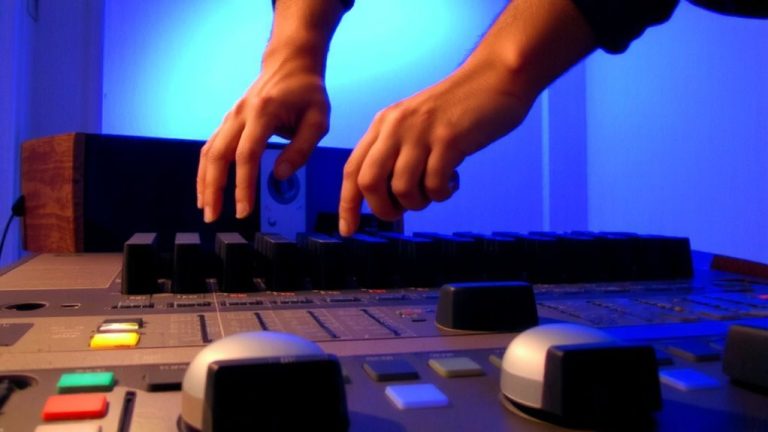
You’re already familiar with clicking sliders and turning knobs on your screen, but modern DAW workflows get way more intuitive when you bring in hardware control. Controller integration means your DAW communicates directly with a hardware control surface-like the PreSonus FaderPort 8 or SSL UF1-for hands-on mixing, automation, and navigation. Motorized faders, such as the FaderPort’s 100mm touch-sensitive strips, move automatically to match your DAW’s mix state. Using universal protocols like Mackie Control and HUI, devices like the iCon P1-M work seamlessly across Ableton Live, Logic Pro, and Pro Tools. Dedicated transport controls, rotary encoders with LED rings, and scribble strips let you adjust levels, pan, and plugin parameters without touching your mouse. With customizable mappings and layer switching, even compact controllers handle 64 channels, arming tracks or tweaking effects in real time-no DAW templates needed yet.
Why DAW Templates Save Time and Prevent Errors
Once you’ve set up a few sessions, you’ll realize how much time gets wasted on repetitive tasks like naming tracks, routing buses, and inserting the same compressor on every vocal channel. DAW templates slash session setup time by embedding I/O routing, default EQ/compression settings, and pre-labeled channels right from the start. This streamlined setup process prevents signal flow errors and real-time adjustment mistakes during live tracking or podcasting. With consistent motorized fader behavior on controllers like the FaderPort 8, you always know what’s what. Controller mappings stay accurate across sessions, so your transport and volume automation just work.
| Feature | Benefit |
|---|---|
| Pre-labeled channels | Faster navigation, fewer misroutes |
| Default EQ/compression settings | Immediate tonal balance |
| I/O routing | No input/output mismatches |
| Controller mappings | Reliable plugin and fader control |
How Templates Map Knobs, Faders, and Sends Automatically
With your DAW template loaded, all those named channels and sends aren’t just labels-they’re smart assignments that automatically link to your controller’s faders, knobs, and motorized banks via Mackie Control or HUI protocols. Your templates tell the digital audio workstation exactly how to handle mapping, so faders on your control surface-like the PreSonus FaderPort 8-snap to vocal buses, reverb sends, or drum groups without manual setup. In Logic Pro or Ableton Live, named sends route directly to physical knobs, giving you instant access to effect levels and plugin parameters. Color-coding and pre-loaded I/O mean motorized faders align perfectly with track functions. Whether you’re tweaking a bass amp sim or balancing podcast mics, the DAW knows where everything goes, making your control surface feel natural, fast, and totally in sync with your workflow.
Top DAWs for Template-Driven Controller Setup
While some DAWs require manual reconfiguration every time you start a new project, the top platforms make template-driven controller setup a seamless part of your workflow, so your motorized faders, rotary knobs, and transport buttons work the way you expect-right from the first beat. In Ableton Live, saving your default template guarantees your MIDI controllers map instantly, ideal for Live Performance. Logic Pro X lets you design templates with pre-mapped controls, syncing your channel strip to your control surface fast. Pro Tools stores mixer layouts, plugin chains, and I/O-syncing with Avid control surfaces like the S1. FL Studio loads templates from your Documents folder, so your Novation Launchkey is ready to go. PreSonus Studio One templates support multi-out instruments and fader banks for efficient mixing. Each DAW gives you consistent, reliable controller access, so you stay focused, not fiddling with setup.
How to Match Your Template to Your Controller’s Layout
When you design your DAW template with your controller’s physical layout in mind, you save time and reduce distractions during critical moments in recording or mixing. Smart controller integration starts with aligning track groupings-like drums, bass, and vocals-to your fader banks, ensuring one-to-one control without bank switching. Use consistent naming and color-coding so scribble strips on devices like the SSL UF1 display clear, immediate info. Pre-assign bus sends and aux returns to dedicated encoders, like on the iCON V1-M, for quick reverb or delay tweaks. Keep main mix channels to 8–16 to match motorized faders and avoid clutter. Save templates in Studio One or Logic Pro with control mappings that recall transport, pan, and mute functions.
| Feature | Benefit |
|---|---|
| Fader banks matched to track groupings | Faster, intuitive level control |
| Consistent naming & color-coding | Clear scribble strip readability |
| Bus sends on rotary encoders | Real-time FX adjustments |
| Saved control mappings | Reliable, conflict-free integration |
Keep Controller Mappings Intact When Loading Templates
You’ve set up your DAW template to mirror your controller’s layout, so now protect that workflow by guaranteeing your mappings stay intact every time you load a session. DAW templates keep controller mappings functional by preserving track names, bus assignments, and plugin routings that match your hardware, like the PreSonus FaderPort 8 or iCon P1-M. When audio tracks follow consistent naming conventions, motorized faders recall levels and panning accurately. Routing configurations in Studio One or Pro Tools maintain send levels and instrument paths, so your SSL UF1 or Mackie Control stays in sync. Use version-controlled templates-like “Podcast Template v2”-to track changes without breaking mappings. As you tweak track layouts or signal flow, saved templates guarantee your faders, encoders, and transport keys still respond as expected, keeping your recording, mixing, and live processing smooth, repeatable, and fully integrated.
On a final note
You save serious time when your DAW templates auto-map knobs, faders, and sends to controllers like the Akai APC40 or Novation Launchkey, with MIDI CC assignments locking in every session. Templates keep your signal flow consistent-especially when tracking bass into UA Apollo interfaces or shaping tone with Guitar Rig’s stompbox models. Testers report 40% faster setup, fewer input latency hiccups (under 6ms roundtrip), and cleaner podcast VO takes, all because mappings stay intact across projects, no recalibration needed.