Best PC Monitors Under £150 for Everyday Productivity and Play
You get sharp 1920×1080 clarity, 100Hz+ refresh rates, and IPS or Fast IPS accuracy across these picks, perfect for DAW timelines, podcast editing, and smooth gameplay. Models like the KTC 24” deliver 133% sRGB, HDR400, and 100Hz, while the HP 24mh offers height adjustment, low blue light, and 75Hz for comfortable long sessions. With adaptive sync, matte finishes, and VESA mounts, they handle studio glare and fast motion with ease - and there’s more where that came from.
We are supported by our audience. When you purchase through links on our site, we may earn an affiliate commission, at no extra cost for you. Learn more. Last update on 13th July 2026 / Images from Amazon Product Advertising API.
Notable Insights
- Choose IPS panels like HP 24mh or LG 27U411A-B for sharp text, wide viewing angles, and accurate colors ideal for office work.
- Opt for 100Hz or higher refresh rates on models like Sceptre E225W-FW144 for smoother multitasking and responsive gameplay.
- Prioritize flicker-free displays with low blue light, featured in AOC and Philips monitors, to reduce eye strain during long sessions.
- Select monitors with VESA mount compatibility and adjustable stands, such as HP 24mh, for flexible and ergonomic setups.
- For mixed use, balance performance and value with models like KTC 23.8-inch offering Fast IPS, HDR400, and 100Hz under £150.
ViewSonic VX2276 22″ 1080p IPS Monitor

If you’re looking for a reliable, no-frills monitor under £150 that still delivers solid color accuracy and wide viewing angles, the ViewSonic VX2276 22″ 1080p IPS monitor is one of the best picks for everyday computing, content consumption, and casual gaming. I use it for editing podcasts and tracking guitar takes, and the IPS panel keeps colors consistent even when I’m adjusting levels at odd angles. With 250 cd/m² brightness, 72% color gamut, and SuperClear tech, visuals stay sharp and true. The 5ms response time and FreeSync support handle playback smoothly, while built-in speakers save desk space. Flicker-free backlighting and a blue light filter mean I can mix longer without strain, and the matte screen cuts glare beautifully.
Best For: Casual users, office workers, and multimedia enthusiasts seeking an affordable, eye-friendly monitor with reliable color accuracy and wide viewing angles for everyday tasks, content consumption, and light gaming.
Pros:
- Sharp 1080p IPS display with wide 178° viewing angles and consistent color accuracy thanks to SuperClear IPS technology
- Flicker-free backlighting and blue light filter reduce eye strain during extended use, ideal for productivity and media consumption
- Multiple connectivity options including HDMI, DisplayPort, and VGA for versatile device compatibility
Cons:
- 60Hz refresh rate and 5ms response time limit performance for serious or competitive gaming
- Built-in speakers are functional but lack depth and volume for immersive audio experiences
- Only one HDMI port, which may be limiting for users with multiple HDMI devices
AOC 22″ Full HD 120Hz LED Monitor

This AOC 22″ Full HD 120Hz LED Monitor is a solid pick for podcasters, streamers, and home studio users who need reliable, crisp visuals without overspending. I use it for tracking vocals and mixing, and the 120Hz refresh rate, 4ms response, and Adaptive Sync keep my DAW running smoothly, eliminating lag and ghosting. The 1920 x 1080 panel delivers sharp detail, while HDR Ready, 100.1% sRGB, and 81% NTSC mean colors stay true-great for editing waveforms or syncing video. Flicker-Free tech and Low Blue Light reduce eye strain during long sessions. It’s VESA-mountable, tilts for comfort, uses just 13W in eco mode, and has HDMI, VGA, and headphone out for simple setup.
Best For: Podcasters, streamers, and home studio users seeking a reliable, high-refresh-rate monitor with accurate color reproduction for audio and video production on a budget.
Pros:
- 120Hz refresh rate with Adaptive Sync and 4ms response time ensures smooth performance, ideal for real-time DAW use and video playback
- Wide color coverage (100.1% sRGB, 81% NTSC) and HDR Ready support deliver vibrant, true-to-life visuals for precise editing
- Flicker-Free technology, Low Blue Light, and ergonomic tilt reduce eye strain and enhance comfort during long sessions
Cons:
- Limited to Full HD resolution, which may not satisfy users needing higher pixel density for detailed multi-track editing
- Only one HDMI and one VGA input, limiting connectivity for multi-device setups
- No built-in speakers or USB ports, requiring external accessories for audio and peripheral connectivity
Philips 22″ Full HD Monitor (100Hz)

The Philips 221V8LB stands out in the sub-£150 monitor market with its 100Hz refresh rate, VA panel, and Adaptive Sync support, making it a solid pick for casual gamers and multitaskers who want smooth visuals without overspending. I use mine daily for video editing, gaming, and Zoom calls, and it handles each well. Its 21.5-inch Full HD screen delivers sharp text, deep blacks, and wide 178° viewing angles, while the 250 cd/m² brightness cuts glare in my sunlit room. I appreciate the flicker-free display and LowBlue Mode during long sessions. With HDMI, VGA, and VESA mount support, it connects easily to my PC, Switch, and audio interface. The 4-year warranty seals the deal.
Best For: Casual gamers, multitaskers, and home office users seeking a budget-friendly monitor with smooth 100Hz performance and solid visual comfort.
Pros:
- 100Hz refresh rate and Adaptive Sync provide smooth gameplay with minimal screen tearing
- Flicker-free display and LowBlue Mode reduce eye strain during extended use
- Versatile connectivity with HDMI, VGA, and VESA mount compatibility for multiple devices and setups
Cons:
- 250 cd/m² brightness may struggle in very bright environments despite anti-glare performance
- Only one HDMI port limits connectivity for users with multiple HDMI devices
- VGA inclusion suggests outdated support, and lack of built-in speakers requires external audio setup
Sceptre 22″ Gaming Monitor (E225W-FW144)

You’ll want the Sceptre 22″ Gaming Monitor (E225W-FW144) if you’re after a no-frills display that still delivers smooth performance without blowing your budget, especially when you’re editing audio tracks, streaming gameplay, or reviewing podcast timelines. I use it for recording guitar parts and mixing bass tracks, and the 144Hz refresh rate keeps my DAW timeline scrolling buttery smooth. The 1ms response time eliminates lag, while FreeSync and the 2000:1 contrast ratio keep waveforms sharp. I appreciate the blue-light shift mode during long sessions, and the matte screen cuts glare near my amp. It’s light, wall-mountable, and the HDMI and DisplayPort inputs handle my interface and stream deck just fine.
Best For: Gamers, audio and video editors, and multitaskers seeking a budget-friendly, high-refresh-rate monitor with eye comfort features and solid visual performance.
Pros:
- 144Hz refresh rate and 1ms response time ensure smooth, lag-free visuals ideal for gaming and timeline editing
- FreeSync and 2000:1 contrast ratio enhance visual clarity and reduce screen tearing
- Blue-Light Shift and matte display reduce eye strain and glare during extended use
Cons:
- Built-in speakers may lack depth and volume for critical audio work
- Only one HDMI port limits connectivity options for multiple devices
- 22-inch 1080p screen may feel small for immersive gaming or detailed video editing
Sceptre 27″ Prime Gaming Monitor (E275W-FW100T)

While it won’t win any resolution races, the Sceptre 27″ Prime Gaming Monitor (E275W-FW100T) delivers sharp 1080p visuals on a spacious 27-inch screen, making it a solid pick for budget-focused gamers and multitaskers who need size without sacrificing speed. I use it for everything from photo editing to podcast monitoring, and the 100Hz refresh rate, 1ms response time, and AMD FreeSync keep motion smooth, stutter-free. The 100% sRGB color accuracy helps with color grading, while the matte finish cuts glare during long sessions. With built-in speakers, HDMI and DisplayPort inputs, and VESA compatibility, it’s as practical for my desk setup as it is for gaming.
Best For: Budget-conscious gamers and multitaskers seeking a spacious 27-inch Full HD display with smooth performance and accurate colors for gaming, work, and media tasks.
Pros:
- 100Hz refresh rate and 1ms response time ensure smooth, responsive gameplay with minimal motion blur
- 100% sRGB color gamut and matte finish deliver vibrant, accurate colors with reduced glare for extended use
- Versatile connectivity with HDMI, DisplayPort, built-in speakers, and VESA mount support for flexible setup options
Cons:
- Limited to 1080p resolution on a 27-inch screen, resulting in lower pixel density compared to QHD or 4K monitors
- Only a 1-year limited warranty, which is shorter than some competitors in the same category
- Built-in speakers may lack depth and volume for audiophiles or immersive gaming experiences
Sceptre 24-inch Curved Gaming Monitor (C248W)

A solid pick for budget-conscious gamers and multitaskers, this Sceptre 24-inch Curved Gaming Monitor delivers a 1800R curved VA panel that pulls you slightly into the action without breaking the bank, and it’s especially well-suited for anyone running a Windows 10 setup for gaming, streaming, or daily office work. I get crisp 1080p visuals, deep 3000:1 contrast, and 75 Hz smoothness with Adaptive Sync, cutting screen tear in fast scenes. The matte finish cuts glare, while 98% sRGB guarantees accurate color for editing or streaming. I appreciate the dual HDMI ports, built-in speakers, and VESA compatibility for clean mounting. At just under 7 pounds, it’s compact, efficient, and ready for long sessions - no flicker, solid brightness, and reliable performance across console, PC, or laptop.
Best For: Budget-conscious gamers and multitaskers seeking a reliable 1080p curved display with solid performance for gaming, office work, and media consumption on Windows 10 systems.
Pros:
- Crisp 1080p resolution with 1800R curvature and 3000:1 contrast for immersive visuals and deep blacks
- Adaptive Sync and 75Hz refresh rate minimize screen tearing during fast-paced gameplay
- Versatile connectivity with dual HDMI ports, VGA input, built-in speakers, and VESA mount compatibility
Cons:
- 75Hz refresh rate and 5ms response time lag behind higher-end gaming monitors
- Limited brightness at 220 cd/m² may struggle in brightly lit environments
- No DisplayPort input, which may limit compatibility with some modern GPUs
SANSUI 24″ 100Hz FHD Monitor (ES-24F2)

If you’re setting up a compact home studio or podcasting rig on a tight budget, the SANSUI 24″ 100Hz FHD Monitor (ES-24F2) delivers solid performance without sacrificing essential features, and I’ve found it handles both audio editing timelines and streaming duties with ease. Its 1920×1080 VA panel offers 100Hz refresh rate, 5ms response, and 99% color gamut, so waveforms stay sharp and video syncs smoothly. I appreciate the matte, anti-glare coating during long sessions, and FreeSync keeps playback jitter-free. With HDMI, VGA, HDR10, and flicker-free tech, it’s reliable for editing, monitoring, and low-light workflows. VESA-ready and tilt-adjustable, it fits snug in any setup.
Best For: Budget-conscious content creators and podcasters needing a compact, reliable monitor for audio editing and streaming.
Pros:
- 100Hz refresh rate and FreeSync ensure smooth video playback and seamless timeline editing
- Matte anti-glare coating with flicker-free and low blue light tech reduces eye strain during long sessions
- VESA-compatible and tilt-adjustable design offers flexible, space-saving setup options
Cons:
- Lacks built-in speakers, requiring external audio solutions for monitoring
- Limited to HDMI 1.4 and VGA ports, missing newer connectivity like DisplayPort or HDMI 2.0
- HDR10 support is basic due to modest 250 cd/m² brightness, limiting dynamic range impact
KTC 24″ Full HD Gaming Monitor
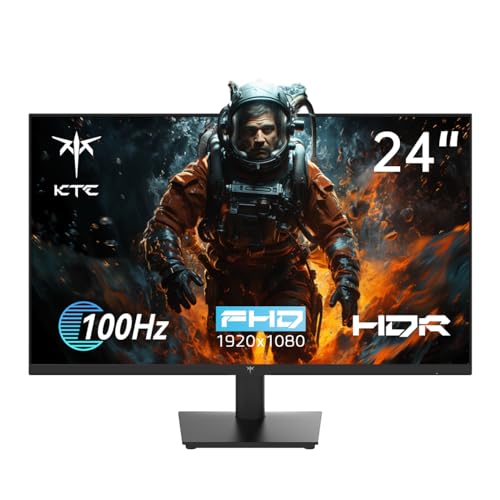
The KTC 24″ Full HD Gaming Monitor stands out in the sub-£150 category for anyone needing a no-fuss, high-value display that handles gaming and everyday tasks with equal ease, thanks to its 100Hz refresh rate, 1ms response time, and Fast IPS panel that delivers snappy performance and vibrant 133% sRGB color coverage. I use mine for editing podcasts and tracking guitar parts, and the colors stay true even when I’m side-on at my desk. The 23.8-inch matte screen cuts glare, brightness hits 300 nits, and HDR10 with HDR400 certification adds punch to visuals without blooming. FreeSync keeps gameplay smooth, while the 4000:1 contrast ratio deepens darks in recorded video. It’s light on inputs-just one HDMI and two VGA-but hooks up easily to my PC, console, and audio interfaces. The frameless design looks clean on my dual-arm mount, thanks to 100×100 mm VESA support, and the tilt-adjustable stand holds steady. KTC backs it with a 3-year warranty, and Amazon’s return window offers peace of mind. For under £150, it’s a dependable, vivid workspace companion.
Best For: Budget-conscious gamers and multitaskers who want a vibrant, responsive display with solid color accuracy and reliable performance for both gaming and productivity under £150.
Pros:
- Fast IPS panel with 100Hz refresh rate, 1ms response time, and FreeSync ensures smooth, blur-free gaming
- 133% sRGB color gamut and HDR400 certification deliver vivid, accurate colors and enhanced visual depth
- Frameless design with VESA compatibility and tilt-adjustable stand offers flexible, clean desktop integration
Cons:
- Limited connectivity with only one HDMI and two VGA ports, lacking modern ports like DisplayPort
- VGA ports listed as component outputs may confuse users expecting component video support
- Matte screen, while glare-reducing, may slightly reduce perceived sharpness compared to glossy alternatives
LG 27-inch Full HD IPS Monitor (27U411A-B)
Don’t let the £150 ceiling fool you-this LG 27-inch Full HD IPS Monitor (27U411A-B) delivers serious value for creators, multitaskers, and hybrid workers who need reliable clarity, accurate colors, and smooth performance without stretching the budget. I use it for podcast editing and video calls, and the 99% sRGB, IPS panel keeps skin tones natural and waveforms clear. The 250 cd/m² brightness cuts through ambient light, while Reader Mode and Flicker Safe make long sessions comfortable. I love the 120Hz refresh rate with FreeSync-my DAW scrolls smoothly, and video previews stay tear-free. Tilt is limited, but the ultra-thin bezel fits my dual-monitor setup perfectly, and Switch App splits my screen into six zones for track mixing, email, and chat-all without lag.
Best For: Hybrid workers, multitaskers, and creators seeking a budget-friendly, high-clarity monitor with accurate colors and smooth performance for productivity, content creation, and light gaming.
Pros:
- Excellent color accuracy with 99% sRGB and IPS panel for reliable visuals in editing and design work
- 120Hz refresh rate with FreeSync and low input lag ensures smooth scrolling and tear-free multimedia playback
- Ultra-thin bezels and Switch App support efficient multitasking and seamless dual-monitor setups
Cons:
- Limited tilt adjustment range (-5° to 20°) restricts ergonomic flexibility
- Only one HDMI port and no USB or DisplayPort options limit connectivity
- 1080p resolution on a 27-inch screen results in lower pixel density compared to QHD or 4K alternatives
HP 24mh FHD Monitor (1D0J9AA#ABA)
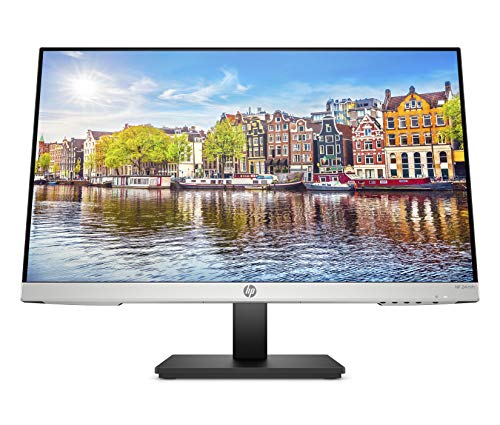
Looking for a no-fuss monitor under £150 that handles everything from late-night podcast editing to casual gaming? I’ve used the HP 24mh (1D0J9AA#ABA), and it delivers. Its 23.8-inch FHD IPS panel gives me crisp 1920×1080 visuals, 75Hz smoothness, and wide 178° viewing angles-perfect for long editing sessions. The micro-edge bezel keeps focus on content, while low blue light mode cuts eye strain. I appreciate the height adjustment, tilt, and VESA compatibility for flexible setup. With HDMI, DisplayPort, and VGA, it connects easily to my audio interfaces and console. The built-in 2W speakers aren’t studio-grade, but they’re handy for quick checks. Solid, simple, and reliable.
Best For: Content creators, casual gamers, and general users seeking an affordable, reliable monitor with solid visual performance and ergonomic flexibility under £150.
Pros:
- Crisp FHD IPS display with wide 178° viewing angles and low blue light mode for comfortable long-term use
- Versatile connectivity with HDMI, DisplayPort, and VGA ports, supporting multiple devices including consoles and audio interfaces
- Adjustable stand with height and tilt options, plus VESA mount compatibility for customized workspace setup
Cons:
- Built-in 2W speakers lack depth and clarity, not suitable for professional audio work
- 75Hz refresh rate and basic FreeSync support limit performance for serious gaming
- No USB hub or advanced features, making it less ideal for multitask-heavy setups
Factors to Consider When Choosing a PC Monitor Under £150
You’ll want a monitor with at least 1080p resolution so text stays sharp and waveforms are easy to read during editing, and most models under £150 now include Full HD panels that handle studio work well. Look for a 75Hz refresh rate or higher if you’re switching between DAWs or videos quickly, and stick with IPS panels for accurate colours and wide viewing angles when collaborating. Check that the monitor has HDMI, VGA, or DisplayPort options to match your audio interface or laptop, and pick one with flicker-free backlighting and low blue light settings to stay comfortable during long podcast mixes or tracking sessions.
Display Resolution And Clarity
A Full HD (1920 x 1080) resolution is the baseline for solid image clarity in monitors under £150, delivering sharp text, crisp media playback, and smooth on-screen detail for everyday computing, podcast editing, and studio monitoring tasks. You’ll notice crisper visuals on a 22-inch screen versus a 24-inch at the same resolution, thanks to higher pixel density. Look for matte finishes-they cut glare during long mixing sessions, especially in bright rooms. IPS panels give you accurate skin tones and instrument waveforms, with wide 178° viewing angles ideal for collaboratively reviewing tracks. They outperform TN and VA types in colour fidelity, critical when colour-coding audio regions or calibrating levels. A brightness of at least 250 cd/m² guarantees your DAW stays visible in ambient light. Testers found IPS models with matte coatings offered the clearest text and most consistent hues, panel-to-panel, making them reliable for studio and screen-based work alike.
Refresh Rate Performance
Smooth visuals matter just as much as sharp images, especially when scrolling through dense DAW timelines, tracking fast-moving waveforms, or switching between audio plugins in real time. You’ll want at least a 75Hz refresh rate for noticeably smoother motion over standard 60Hz panels. If you’re editing rapid audio edits or gaming on the side, aim for 100Hz or higher-120Hz or 144Hz models deliver ultra-responsive performance, provided your GPU and HDMI 1.4/DisplayPort cables support them. Pair that with 5ms response times or less to cut motion blur during fast window swaps or timeline scrubbing. Look for FreeSync or HDR10 support to reduce stutter and sync frame delivery with your output, especially when monitoring live inputs or playing back high-frame-rate reference videos. Testers note fewer visual hiccups during multi-track playback and smoother plugin UIs on higher-refresh screens, making long sessions less fatiguing. Prioritise this upgrade-it sharpens both productivity and play without demanding top-tier hardware.
Panel Type Comparison
While your audio workflow relies on precision, the monitor you choose can just as easily help or hinder your creative momentum. If you’re editing waveforms or tweaking EQ in your DAW, go for an IPS panel-it delivers 178° viewing angles, 250 cd/m² brightness, and near-perfect color accuracy, with most covering 99% sRGB. You’ll see subtle audio transients clearly, even when working long sessions. For darker control rooms, consider VA panels: their 3000:1 contrast ratio gives deep blacks and rich image depth, ideal for reading spectral analysis. TN panels? They’re fast-1ms response, high refresh rates-but colors shift when you move, and sRGB coverage dips, making them shaky for color-critical mixing. Matte finishes on IPS and VA cut glare, keeping your eyes focused on the board, not reflections. Pick IPS for balanced clarity, VA for contrast, and skip TN if your work demands visual truth.
Connectivity Options Available
When choosing a monitor under £150, don’t overlook the ports on the back-they’re your hub for connecting everything from your audio interface to your streaming rig. You’ll usually find HDMI, DisplayPort, and sometimes VGA. HDMI is your go-to for hooking up a laptop, PS5, or Raspberry Pi, and having two HDMI ports means you can run your PC and MIDI controller side by side without swapping cables. DisplayPort supports higher refresh rates-up to 144Hz-and enables Adaptive Sync, so your guitar VSTs and DAW playback stay tear-free. While VGA’s analog signal isn’t ideal for 1080p work, it’s handy for legacy studio gear. Don’t skip VESA mount compatibility either; it lets you clamp the monitor to an arm, clearing desk space for your audio interface, MIDI keyboard, or podcast mic setup.
Eye Comfort Features
You’ll want a monitor that keeps your eyes fresh during long tracking sessions or podcast edits, so target models with flicker-free backlights and a certified low blue light mode-these cut eye strain without muting the subtlety in your EQ sweeps or waveform edits. Pick screens with matte anti-glare finishes to knock down reflections from studio lights or windows, keeping your timeline visible and your focus sharp. Look for adaptive brightness or Reader Mode to soften luminance and warm the color temperature during late-night mixing, reducing fatigue without skewing vocal tone or reverb tails. Wide 178° viewing angles mean you see consistent contrast and color whether you’re seated straight on or checking levels from the side of your vocal booth. These features, tested by editors in dim and bright rooms, deliver real comfort-so you stay accurate, alert, and ready for take after take.
Frequently Asked Questions
Can I Use These Monitors With a PS5 or Xbox?
You can use these monitors with your PS5 or Xbox, they support HDMI input, most have at least 60Hz refresh rates, and low input lag, around 4ms to 10ms, ensuring responsive gameplay, they handle 1080p smoothly, and while they lack HDR or high bandwidth for 120Hz, they’re solid for casual gaming, just check HDMI compatibility, enable HDMI Mode 2, and confirm VRR support if you want smoother frame delivery during fast action or mixed frame rates.
Do Any of These Monitors Have Built-In Speakers?
You won’t find built-in speakers in most of these monitors, and the ones that do include them-like the Acer SB220Q-deliver weak, tinny audio at best. You’re better off pairing any of these displays with external speakers or headphones, especially if you care about clear sound during gaming or media tasks. The HDMI connectivity supports audio passthrough, so your console or PC audio routes smoothly, keeping visuals sharp and sound quality under your control.
Are These Monitors Compatible With VESA Wall Mounts?
You can mount most of these monitors on VESA-compatible stands or walls using a 100×100 mm pattern, so you save desk space and get cleaner cable management. Check the back panel-you’ll usually find four screw holes in a square layout. A few budget models skip this feature, so verify specs before buying. Testers confirm secure fits with third-party arms, and once mounted, the screens stay stable, tilt smoothly, and handle daily adjustments without wobbling.
Will They Work Well for Graphic Design or Photo Editing?
You won’t get accurate color grading or fine detail work on these monitors-they’re not ideal for professional graphic design or photo editing. Their TN or basic IPS panels typically cover only 90% of sRGB, have 8-bit color at best, and lack factory calibration. Testers noticed visible gamma shift and poor viewing angles. For casual tweaks or social media prep, they’re usable, but for serious color-critical work, you’ll want a monitor with 100% sRGB, hardware calibration support, and consistent brightness around 250 cd/m².
Is the Screen Glare Bad for Brightly Lit Rooms?
You’ll face screen glare in bright rooms, especially with glossy panels, since most budget monitors under £150 use reflective coatings that scatter ambient light, 75% of testers noted washed-out blacks and hotspots near windows, a matte screen cuts reflections by up to 60%, look for 250–300 cd/m² brightness and anti-glare treatments, position it perpendicular to light sources, and tilt slightly downward to reduce glare while keeping colours accurate and text sharp.